WoW Forever Graphics Settings
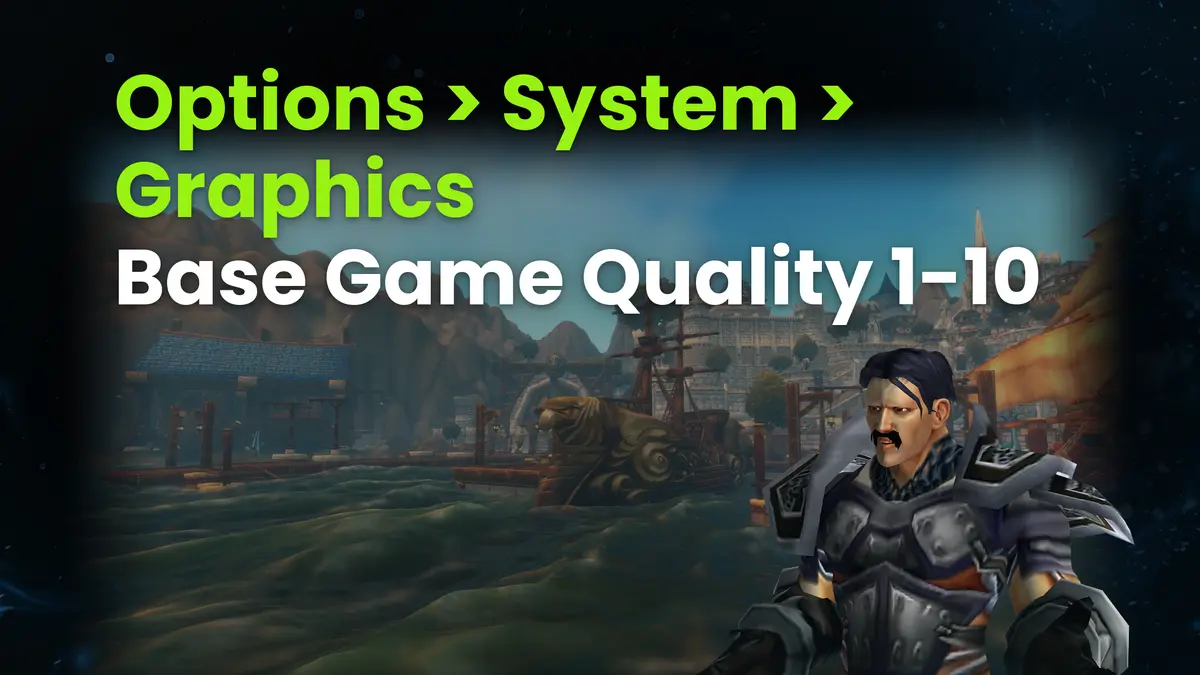
WoW Forever graphics settings control how many frames per second your PC will produce and how the new lighting, volumetric fog, and flowing water will look. They start with the Classic or Enhanced preset when you first log in, although graphics quality is handled in the Options > System > Graphics menu, where Secondary Lighting and Compute Effects consume the most FPS. These two settings are the first to be adjusted when frame rates drop in crowded cities.

Classic vs Enhanced Preset
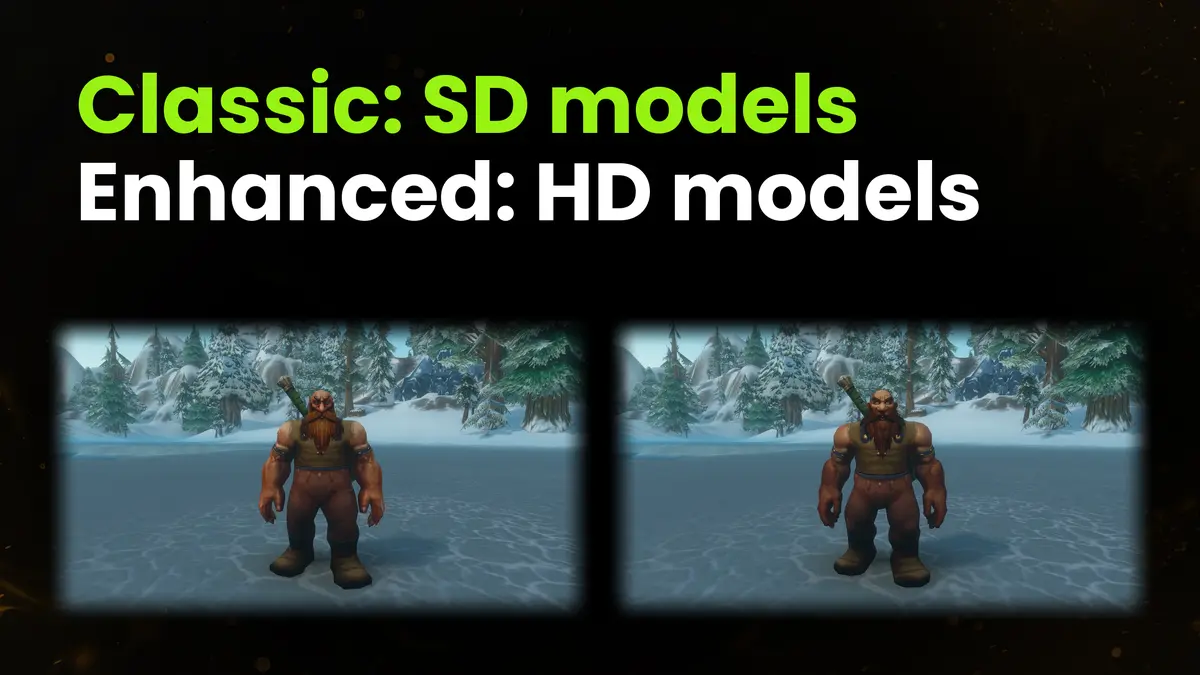
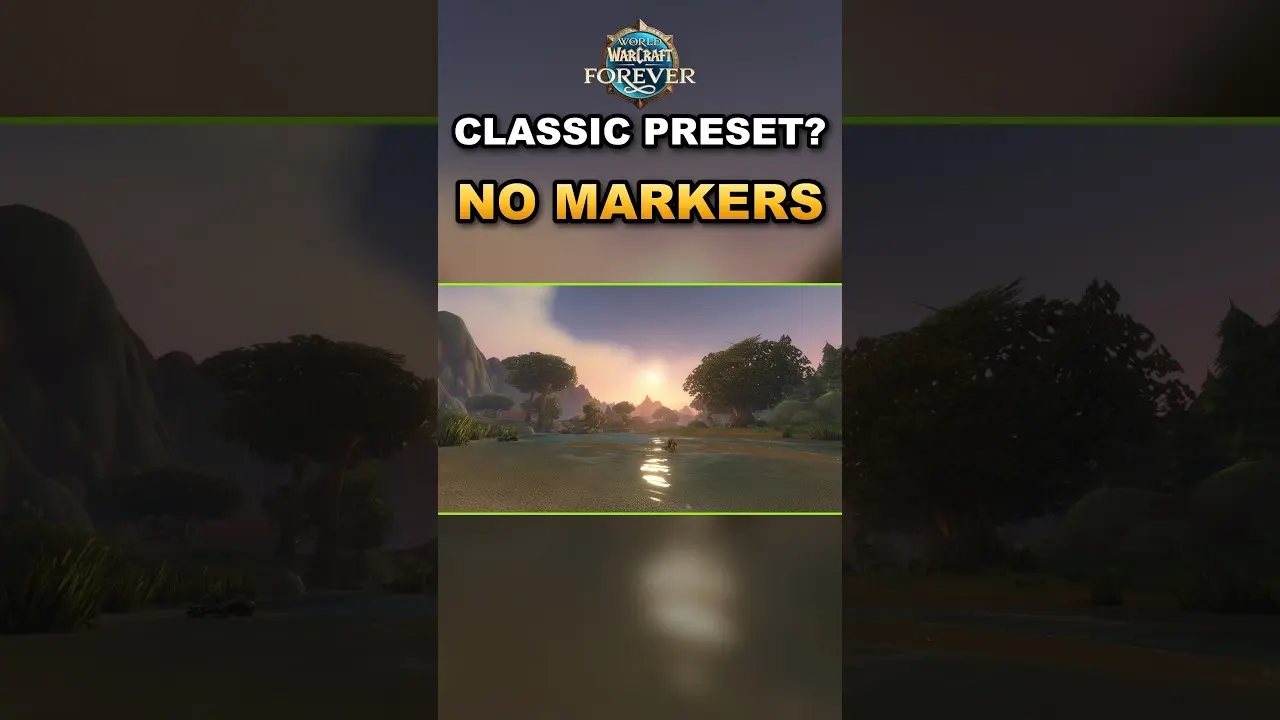
The game asks you to choose between Classic and Enhanced on the Choose Your Experience Preset screen when you first log in, even before selecting a ruleset. This screen won’t appear a second time, though you can change the preset later. The preset in World of Warcraft Forever changes the visuals and interface, but leaves the ruleset, abilities, and character progress untouched. In addition to the six differences listed by Blizzard, the client code adds a seventh (NPC Names):
| What Changes | Classic | Enhanced |
|---|---|---|
| Character Models | SD | HD |
| Quest markers and areas | Off | On |
| Combined bag | Off | On |
| Transmog | Off | On |
| Movement keys | Camera rotation | Strafe |
| Screen layout | Classic | Centralized |
| NPC Names | None | Hostile, Quest, and Interactive NPCs |
None of the presets affect graphics quality, as that is controlled by the settings in the Options > System > Graphics menu. For those unsure which to choose, Blizzard recommends Enhanced.
Related Services

How to Change the Preset Later
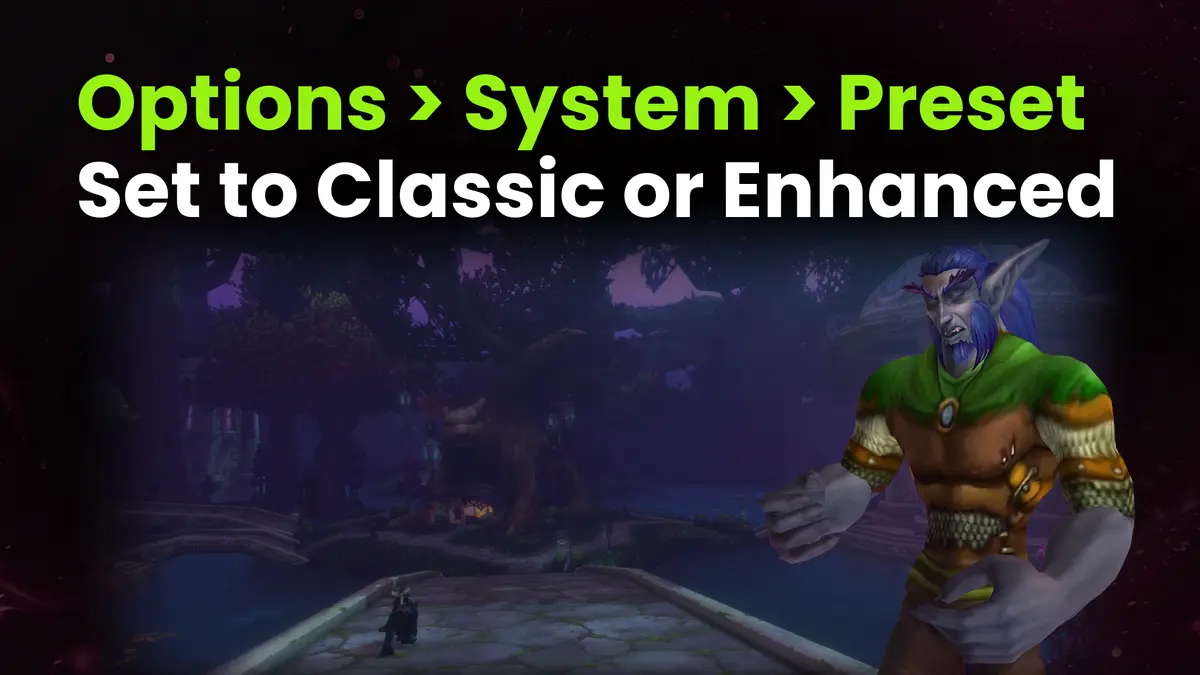
You can change the preset later in Options > System > Preset using the Set to Classic and Set to Enhanced buttons. Separate items in the preset can be toggled one at a time without changing the entire preset:
- Character Models - a drop-down list in the same menu with the options Standard Definition and High Definition, i.e., SD or HD models.
- Show Quest POIs & Blobs - a checkbox that displays quest markers on the map and objective areas.
- Combine Bags - collects all bags into a single window, as Enhanced does.
- Classic Turn/Strafe Keys and Enhanced Turn/Strafe Keys - these two buttons assign camera rotation (Classic) or strafing (Enhanced) to the movement keys.
- Edit Mode - this Game Menu option changes the screen layout.
You can also switch between HD and SD models in the Barbershop without going into the menu. Since these settings aren’t linked, there’s nothing stopping you from keeping the SD models while using the combined bag and quest markers from Enhanced.
Where the Graphics Settings Are
All WoW Forever graphics settings are collected under Options > System > Graphics, where the Base Game Quality slider (1-10) adjusts them all at once. In the same menu, the Raid tab (with the Enable Raid and Battleground Settings checkbox) stores a separate set for raids and battlegrounds. After experimenting, it’s easy to return to the starting point because each setting’s default value is labeled Recommended. Four graphics settings new to this version of WoW (and not found in Classic Era) are:
- Secondary Lighting - secondary lighting with four levels ranging from Fair to Ultra. Fair is the lightest setting because this option cannot be disabled.
- Compute Effects - volumetric fog and some particles that WoW renders at levels ranging from Low to Ultra.
- PBR Liquid Detail - controls the new flowing water and offers Low, High, and Ultra levels.
- Bloom Intensity - sets the strength of the glow around bright light sources.
The tooltip for Render Scale states that values below 100% will reduce the load on the graphics card and may give a significant FPS boost. Above 100%, this setting enables SSAA supersampling, which is described there as very resource-intensive. The anti-aliasing options remaining in the menu are FXAA and CMAA, because Blizzard disabled MSAA back in the beta test until the bugs are fixed. If jagged edges on models are bothersome, a powerful PC will smooth them out with a Render Scale setting above 100%.
How to Copy Settings From Beta
Blizzard hasn’t given a ready-made method for copying settings from the beta to the released client, although graphics and sound settings are stored in the Config.wtf file. It’s located in the WTF folder inside the client folder, which was named _classic_beta_ in the beta and is named _forever_ in the released version. The data is distributed across four locations:
| Data | Where It’s Stored |
|---|---|
| Graphics and sound | Config.wtf in the WTF folder |
| Character settings | Config-cache.wtf in the WTF folder |
| Keybindings | Account server |
| Retail settings | Your retail client |
Reinstalling the client does not reset your keybindings because WoW synchronizes them with the server. On a single PC with two accounts, WoW saves the settings of the last window you closed, so be sure to close the window with your desired graphics settings second.
Best Graphics Settings for FPS
Finding the best graphics settings for a low-end PC starts with Secondary Lighting and Compute Effects, because these two settings consume the most frames. Render Scale comes last in this list. Tips from the press and player reports boil down to the following values:
| Setting | For FPS | For Visual Quality |
|---|---|---|
| Render Scale | 80-90% | 100% |
| Secondary Lighting | Fair | Good |
| Compute Effects | Low or one level higher | High |
| Shadow Quality | Low or Fair | High |
| SSAO | Low or Fair | Max |
| Spell Density | Essential | Max |
| Target FPS | Off | Off |
Beta testers reported that setting Compute Effects to Ultra cost 20-30 FPS with no visible difference from High. Another report shows a frame rate increase from 100 to 230 after lowering Secondary Lighting from High to the lowest level. In a third report, the FPS doubled without Target FPS, which reduces quality during frame drops. I recommend lowering Secondary Lighting and Compute Effects first, and leaving Render Scale (which, according to the menu tooltip, offloads the GPU) for when the counter displays GPU Bound. It’s not very useful when the game is CPU Bound.
Settings for the Best Visuals
You can turn everything up on a powerful PC except the highest settings for Secondary Lighting and Compute Effects, because the difference they make is hard to notice. GameRant also keeps them below the maximum even on a powerful machine (Secondary Lighting set to Good, Compute Effects set to High). The FPS saved by lowering them goes toward settings that shape the scene’s visual quality:
- PBR Liquid Detail - the new water rendering, which can be set to Ultra on a powerful PC.
- Shadow Quality - GameRant sets shadows to High for a beautiful visual experience.
- SSAO - adds depth to the scene with shading in corners and at the junctions of objects.
- Textures - the clarity of surfaces and fine details up close.
Render Scale is at 100% for the best visuals. Higher values enable the resource-intensive SSAA, which will consume the performance headroom saved by the two demanding graphics settings.
Upscaling and Ray Tracing
The WoW client does not support DLSS. WoW is also not on the list of DLSS 5 games: this is what NVIDIA calls its neural rendering technology for the RTX 50 series. There are still videos featuring DLSS 5 in WoW, but they are recorded using third-party injectors. By installing such an injector, you are modifying the client in violation of Section 1.C of the Blizzard End User License Agreement (EULA). Two built-in options are available: FSR 1.0 and NVIDIA Reflex. The table below shows where they are located in the menu and what features are missing:
| Technology | In the menu |
|---|---|
| DLSS | No |
| XeSS | No |
| Frame Generation | No |
| FidelityFX Super Resolution 1.0 | Resample Quality |
| NVIDIA Reflex | Low Latency Mode |
| Ray Traced Shadows | Hidden until fixed |
Blizzard removed Ray Traced Shadows from the menu on October 1. The developers promised that after the fix, this setting “will be re-added to the game in a future update.” If you have an NVIDIA graphics card, you can install driver 621.14 from November 4 (which includes optimizations for WoW) as an alternative to ray tracing.
Graphics Console Commands
Some settings aren’t available in the menu. You can access them using console commands, which you type right into the chat: start with /console, followed by the parameter name and value. Your changes will persist even after closing the client, because WoW saves them in WTF\Config.wtf. The commands in the table below modify graphics or the interface and work after the game’s launch:
| Command | What it does |
|---|---|
| maxFPS (with useMaxFPS 1) | Sets a frame rate limit |
| useTargetFPS 0 | Disables Target FPS |
| cameraDistanceMaxZoomFactor 2 | Moves the camera farther away |
| weatherDensity 0 | Removes most of the rain |
| ResampleAlwaysSharpen 1 | Enables sharpening without FSR |
| nameplateStyle 6 | Restores classic nameplates |
| xpBarText 1 | Numbers on the experience bar |
You can enter the old volumeFog 0 value as many times as you like, but the fog won’t disappear. This command stopped working on September 24, when Blizzard removed the ability to disable the fog via /console.
How to Show FPS
By default, Ctrl+R triggers the Toggle Framerate Display action, which is responsible for showing FPS in WoW. If this key combination is already taken, it takes just three steps to reassign it:
- Esc > Options - first, open the Game Menu by pressing Esc and navigate to the options from there.
- Gameplay > Keybindings - in the list of keybindings, look for the Miscellaneous group.
- Toggle Framerate Display - assign this action to an unused key to free up Ctrl+R.
Along with the FPS number, the counter displays either CPU Bound or GPU Bound. This indicates what’s limiting your frame rate: the CPU if it’s CPU Bound, or the graphics card if it’s GPU Bound. In the latter case, Render Scale can help. Lowering this setting below 100% will reduce the load on your graphics card.

UI Settings Worth Changing
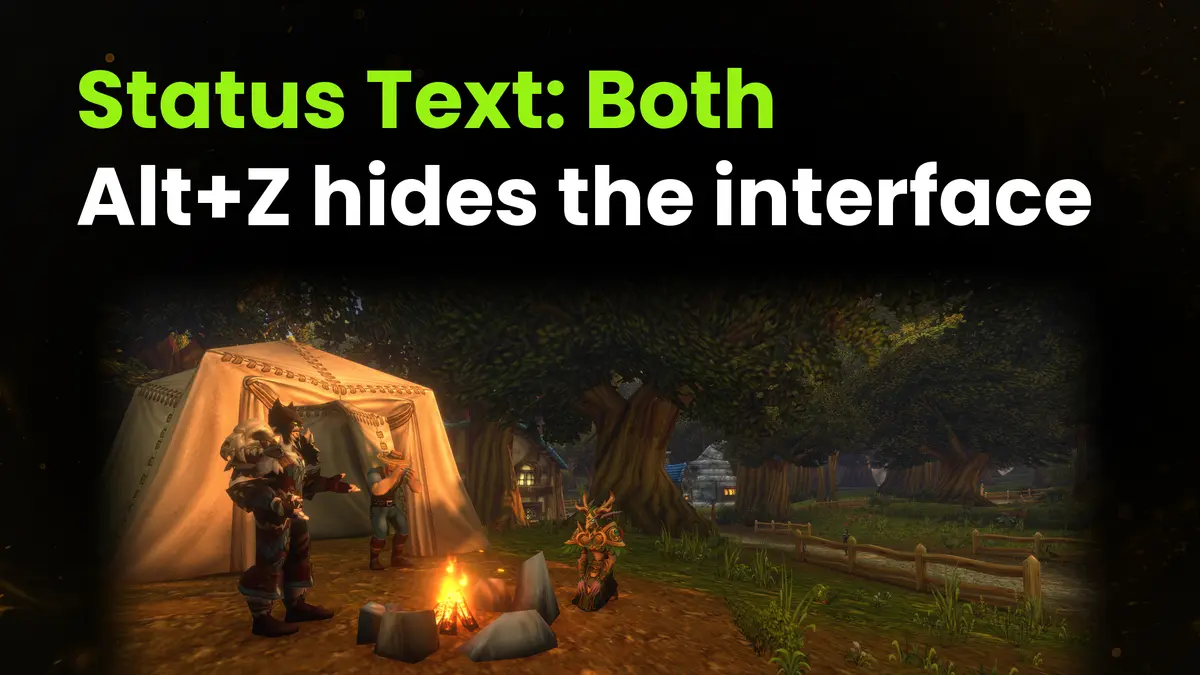
Health and mana numbers will appear on your character’s and target’s frames when you enable the Status Text setting in Options > Gameplay > Interface > Display. Choosing Both there will display both the number and the percentage. Look for three more useful toggles elsewhere:
- NPC Names - this setting under Options > Gameplay > Nameplates restores NPC names, which are hidden by default in the Classic preset.
- Max Camera Distance - moves the camera farther back within a range of 1.0-2.0. A value of 2.0 has the same effect as setting the cameraDistanceMaxZoomFactor to 2.
- Alt+Z - a shortcut for the Toggle User Interface action, which hides the interface until you press it again, freeing up the screen for screenshots and exploration.
There aren’t many built-in settings for a complete UI overhaul. In our addon guide, we’ve chosen the best ones and outlined the order in which to install them.
System Requirements

The minimum listed on the Battle.net store requires your PC to have a graphics card with DirectX 12 support and an SSD. The table breaks it down by component:
| Component | Minimum |
|---|---|
| Operating System | Windows 10 64-bit (May 2019+) |
| Processor | Four cores, 3.0 GHz |
| Graphics Card | DirectX 12, 4 GB |
| RAM | 8 GB |
| Storage | SSD, 128 GB free |
Blizzard lists three examples of minimum graphics cards: GTX 10, RDNA 1, and Intel Iris Xe2-LPG. If your card is older than 2012-2015, it won’t work because the game’s new graphics are built on the RGBA16F UAV feature, which is not present on older chips.
Known Graphics Bugs and Fixes
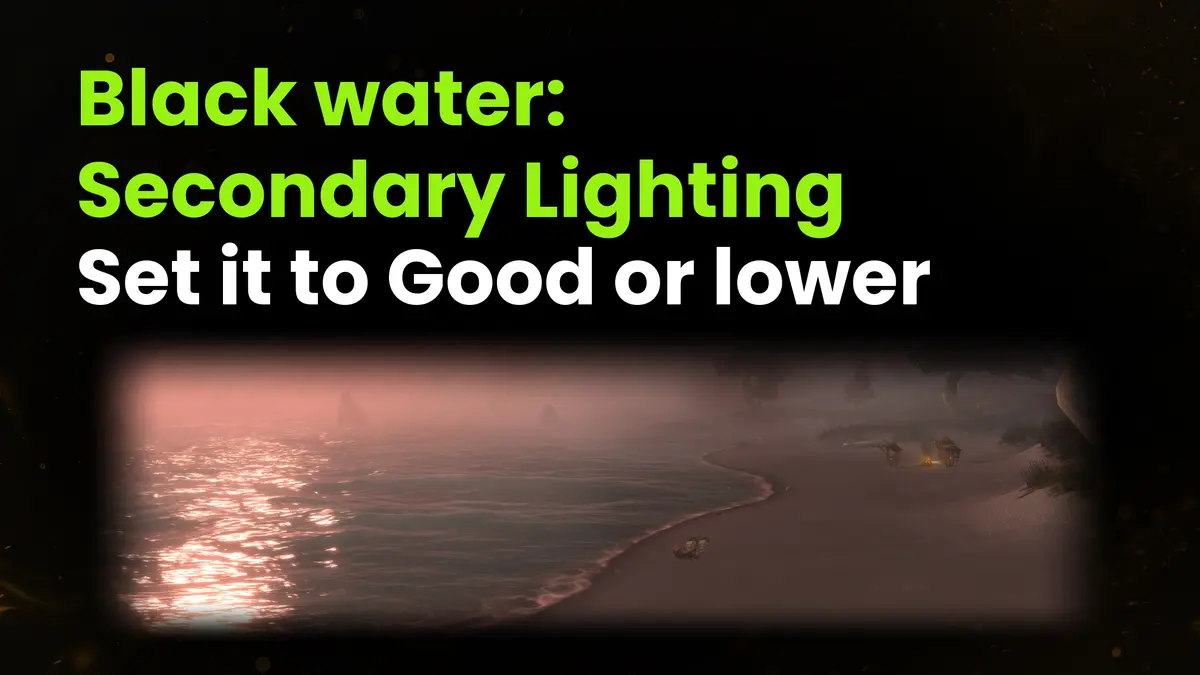
Players have found several graphics bugs since launch. You can work around most of them with just one or two settings adjustments. Below are five issues that keep cropping up in reports:
- Black water - water on Windows 11 with DX12 turns black after the November 6 patch when Secondary Lighting is set above Good. The blackness will disappear if you lower this setting to Good or below.
- Stuck at 60 FPS - Blizzard fixed this bug back in beta testing, but players are complaining about it again after launch. For some, turning off Low Latency Mode helped.
- Settings reset - updates return them to maximum. If you notice a Render Scale of 200% with resource-intensive SSAA supersampling after a patch or addon, lower it to 100%.
- Blurry text - interface text loses its clarity whenever Auto HDR is enabled in Windows. Disabling Auto HDR for WoW will restore the sharpness of the letters.
- Reversed UI Scale - this slider at 80% makes the interface larger, even though that value is supposed to shrink it. To make the frames smaller, move the UI Scale slider in the opposite direction.
Blizzard’s list of known issues from November 5 includes just one graphics-related bug: flickering textures at the entrance to Stormwind Keep. For the rest, you’ll have to rely on workarounds discovered by players themselves.
Spend Your Hours Playing
Tinkering with the WoW Forever graphics settings will take just one evening. But the line for mobs in a crowded starting zone isn’t going anywhere, no matter which slider you adjust. Tips for these locations are compiled in our leveling guide for levels 1-60. To skip them and start playing at level 60 right away, check out our two options:
- WoW Forever Character Leveling Boost 1-60 - you won’t have to spend hours waiting in line for mobs in crowded starting zones, because our team will level your character from level 1 to 60.
- WoW Forever Starter Pack - this single purchase includes your first character leveled to 60, your first mount, and professions at 300.
99% of customers receive their orders without a single account issue, as our team safeguards their data at every stage. If you need other in-game assistance, check out the WoW Forever boost section.
WoW Forever Graphics FAQ
Does WoW Forever have DLSS?
There’s no support in the WoW client for DLSS, XeSS, or frame generation. But it does include FidelityFX Super Resolution 1.0, which you can enable via Resample Quality. NVIDIA Reflex is also supported: it’s handled by Low Latency Mode.
How do you show FPS in WoW Forever?
The frame rate counter appears and disappears when you press Ctrl+R, which is set by default in WoW to Toggle Framerate Display. You can remap this key in Options > Gameplay > Keybindings > Miscellaneous.
Can you change the preset later?
The game displays the preset selection screen just once, upon your first login. But the choice you make there isn’t final. You can change the preset later using the Set to Classic and Set to Enhanced buttons in Options > System > Preset.
Can you turn off fog in WoW Forever?
As of September 24, fog in WoW cannot be turned off: Blizzard no longer allows this. The Compute Effects setting affects its quality, not whether it’s present at all.
What PC do you need for WoW Forever?
WoW Forever requires at least Windows 10 64-bit, a 3.0 GHz quad-core processor, and 8 GB of RAM. The game expects a graphics card that supports DirectX 12 and has at least 4 GB of dedicated memory. You’ll need to free up 128 GB of space on your SSD for installation.